Seller workflow
From Etsy order to laser-ready SVG
Keep customer text in rows, choose a product template, preview the batch, then export one SVG for your laser software.
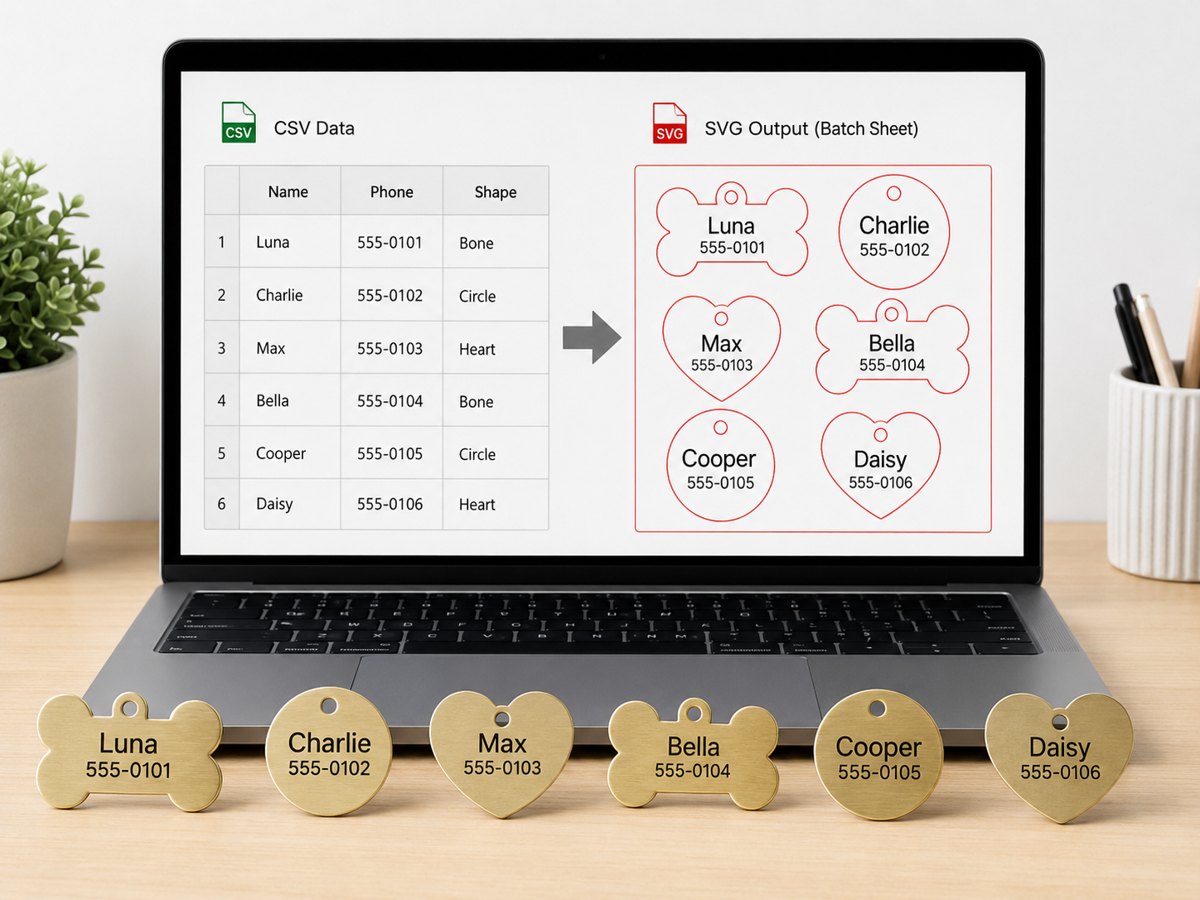
Start with clean order rows
Personalized orders often begin as names, phone numbers, guest lists, or serial numbers. Keep that information in a simple row format before touching design software. One row should become one product. This reduces missed names and makes the job easier to check.
Match the row to the product
A pet tag may need a name and phone number. A wedding place card may only need a guest name. A QR label may need a label title, code, and serial number. Pick the template that matches the order before adjusting fonts or spacing.
A practical order workflow
- Copy the customer data into a simple text or CSV list.
- Paste the rows into a SpiderMake generator.
- Choose the product shape and check the preview.
- Export the SVG with real-size cut and engrave artwork.
- Import the SVG into your laser software and run one material test.
Why this is better than manual placement
Manual placement works for one item. It becomes risky for a batch. When every name is placed by hand, it is easier to skip a row, duplicate a customer, or move text outside the cut shape. A row-to-SVG workflow keeps the order data visible while the layout is generated.
What to check before engraving
Check spelling, phone numbers, line breaks, and scale. Confirm that red cut lines and black engraving artwork import as expected in your laser software. Save the original order rows next to the exported SVG so customer questions are easier to trace.
Use a sample pet tag, wedding card, QR label, keychain, or nameplate before preparing a real customer order.
Start from a sample Request a template